How to Add Music to an AI Tecktonik Video
How to add music to AI Tecktonik video clips: why the download is silent, which licensed track to pick in each app, and what the rules really allow.
Tecktonik Dance AI editorial team · Updated October 8, 2026
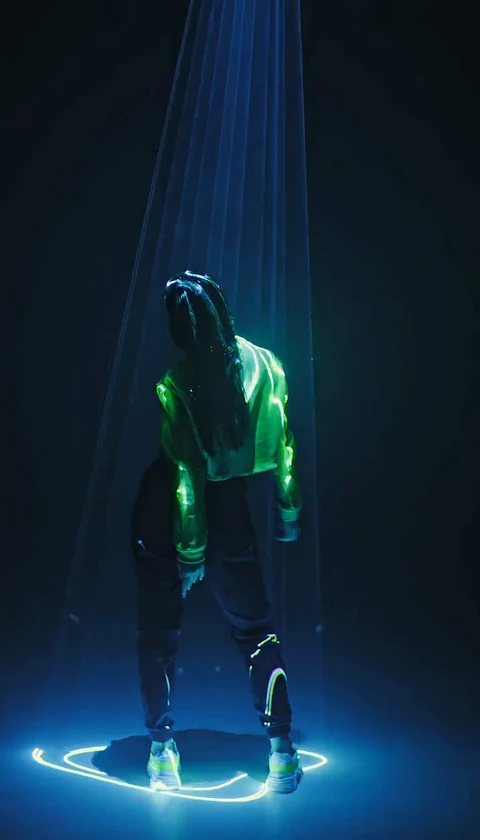
The video you download from Tecktonik Dance AI has no audio track at all. Not a quiet bed, not a placeholder tick, nothing. That surprises people the first time, so it is worth saying plainly: the silence is a design decision, not a bug and not something you forgot to switch on. Adding music to an AI Tecktonik video is your job, and where you do it matters more than which track you pick.
This guide covers why the file is silent, how to add a track inside TikTok, Instagram or YouTube, how to choose something that fits the arm work, and what a platform library sound does and does not let you do. If you have not generated a clip yet, start on the create page and come back with the MP4 in hand.
Why the download has no audio
The tool does not own the music it would need to attach. It is independent: it is not affiliated with any artist, label or social platform, and it does not supply or license music. If the studio embedded a track into your MP4, that track would bring its own licence terms, and those terms would not travel with your post when you upload it somewhere else. You would be publishing a file that carries audio you have no documented right to use in that app.
Keeping the clip silent moves the music decision to the place where the licence actually lives. TikTok, Instagram and YouTube each run their own sound libraries, and those libraries carry the permissions that let you legitimately publish a video with that audio attached. When you add a track from inside the app, the licence is handled by the app on your behalf under its own terms. When you bolt a track onto a file on your desktop and upload it, nobody is handling anything.
There is a second, smaller benefit. A silent file is flexible: the same MP4 can become a Reel with one sound, a TikTok with a different one, and a YouTube Short with a third, without re-encoding anything or stripping an audio track out of it first.
How to add music to an AI Tecktonik video
The route that causes the fewest problems is to add the track inside the app you are publishing to, using that app's own editor. External video editors are worth avoiding for this step unless you need something the built-in tools genuinely cannot do.
1. Get the MP4 onto your phone
Download the original from the studio once your account has a completed purchase. The file arrives in your downloads folder. Move it to the camera roll or gallery on a phone, because the app upload picker reads from there and will not browse arbitrary folders. Keep the original somewhere safe as well; platform editors re-encode what you import, so a clean copy is useful if you later want a different crop.
2. Start the post inside the app you are posting to
Open TikTok, Instagram or YouTube and begin a new post or upload. Import the clip as your main footage first, then add sound. Doing it the other way round means the editor may already have laid a fifteen- or thirty-second audio bed that you then have to trim back to a clip that is only 8 or 10 seconds long.
3. Add the track from the app's library
Search the in-app library rather than a browser. A track you can search and select inside the editor is a track the app is prepared to attach to your post.
4. Check the sound levels, not just the track
Two sliders matter. The original audio slider should sit at zero — the clip is silent, so there is nothing to hear, but leaving the control mid-way is a common habit that occasionally picks up room noise from other takes in a project. The added track should be the only audible source. If you layered two sounds, bring one down rather than trying to balance two beds.
5. Trim the audio to the clip, not the clip to the audio
The video is fixed at 8 or 10 seconds. Most tracks run longer, so you are choosing which eight seconds of the song accompanies the dance. That choice is where most of the perceived quality comes from, and the beat sync guide walks through it in detail.
Choosing a track that matches the arm tempo
Tecktonik is arm-driven. The upper body stays stiff while the arms do a lot of fast, continuous work — waves, wrist rolls, sweeps that pass in front of the torso. Music that fights that vocabulary makes the clip look slower than it is, and music that agrees with it makes the motion read as deliberate.
Listen for the kick pattern first. A clear, regular pulse gives you something to land the shoulder and elbow accents on. Crisp high percussion — hats, claps, sharp synth stabs — reads well against wrist rolls, because the movement and the sound share the same sharp quality. Sustained pads and long reverb tails blur the motion instead.
What to avoid: slow ballads, anything with a long instrumental introduction, and tracks whose main event arrives after ten seconds. If the track takes longer to reach its core than your clip lasts, you will spend the whole video on buildup. Faster electro and the harder end of house sit naturally with this dance; soft acoustic material does not.
Also decide where the vocals sit. A track with a dense vocal in the first seconds competes with the visual for attention and tends to make a short clip feel cluttered. Instrumental or lightly vocal sections are usually the friendlier choice.
The three routes compared
| Route | How it works | When to use it | Risk |
|---|---|---|---|
| In-app library sound | You pick a track from the platform's own audio catalogue while editing the post; the platform handles the licence under its terms | Default choice for anything you post inside that app | The licence is tied to that platform and can change; if the sound is later restricted the post may be muted |
| Your own licensed file | You import a track you produced, commissioned or licensed yourself and mix it inside the editor | You want the same audio across several platforms, or you have original music | You are the one responsible for the rights; no platform is covering you |
| Trending audio | You attach a currently popular sound to borrow its discovery surface | You have a clip that genuinely fits the sound's mood and tempo | Popularity moves fast; a track can fall out of rotation before your post gains traction, and the trend may not suit the arm tempo at all |
What a library track permits, and what it does not
Using a sound from a platform library is a permission to publish your video with that audio inside that platform. It is not a transfer of ownership and it is not a general-purpose licence.
What it does let you do: publish your video publicly with the sound attached, keep the post up while the platform's licence for that sound is in effect, and let other users discover the post through the sound's page.
What it does not let you do: claim you made or own the track, download the audio and reupload it as your own sound, or take the resulting file and reuse it somewhere the platform's licence does not reach. It also does not guarantee permanence. Platforms periodically renegotiate or withdraw catalogues, and a post using a withdrawn sound can be muted — the video stays, the audio disappears. If a clip matters to you long term, that is an argument for a track you control.
How the AI label interacts with a licensed sound
Most platforms now expect you to disclose that a video was synthetically generated, and TikTok and Instagram both provide a label for it. The label concerns the visuals. It has no effect on the music rights and does not replace the need to use a sound legitimately. Conversely, using a properly licensed sound does not exempt you from disclosing the generation. Treat the two decisions as separate, and make both.
Using your own track or a friend's music
Your own track, a track you licensed, or music from a royalty-free library you have actually read the terms of solves the permanence problem entirely. You keep the file, so the same clip works on every platform, survives catalogue changes, and can be reused in different edits.
A friend's music works too, with one condition: get the permission in writing, even if it is a message that clearly states what you may do with the track. Verbal permission is hard to rely on later, and the awkward version of that conversation happens after the post does well rather than before.
If you are using a royalty-free library, read the specific licence attached to that track rather than the library's marketing page. Some libraries grant broad use, others restrict commercial contexts or require attribution, and the difference matters.
Frequently asked questions
Why is my Tecktonik clip silent?
By design. Every scene is generated without an audio track, so the finished MP4 contains no sound. Adding music is a deliberate step you take in the app where you publish.
Can I add music inside Tecktonik Dance AI?
No. The tool generates and delivers silent video. It does not include a music library, does not license tracks, and does not attach audio to the download.
Does adding music cost credits?
No. Credits are spent on video generation — 30 credits per standard video — and music is added outside the tool. Check the pricing page for how credit packs work.
Can I use a well-known song?
You can use it as a sound chosen from the platform's own library inside that platform. You should not download the audio separately and attach it to your own file, and you should not present it as your own.
Does the AI-generated-content label change what music I can use?
No. The label is about the visuals. The music decision is governed by the platform's sound licence, and it stands on its own.
Can I reuse one track across several clips?
Yes, if you are using it as a library sound within the same platform or if you hold the rights to the file. Reusing a library sound simply links your posts to the same audio page.
Where to go next
If you have not made the clip yet, the create page is the starting point, and the workflow walkthrough shows the full path from scene choice to download. Once you have a track in mind, the beat sync guide shows how to line the audio up with the arm work, and the TikTok guide covers how the sound choice interacts with posting. If you are planning several clips and want formats that suit a short silent video, the ideas guide is the better place to start.
Tecktonik Dance AI is independent of any artist, music label or social platform, and it supplies no music of its own.