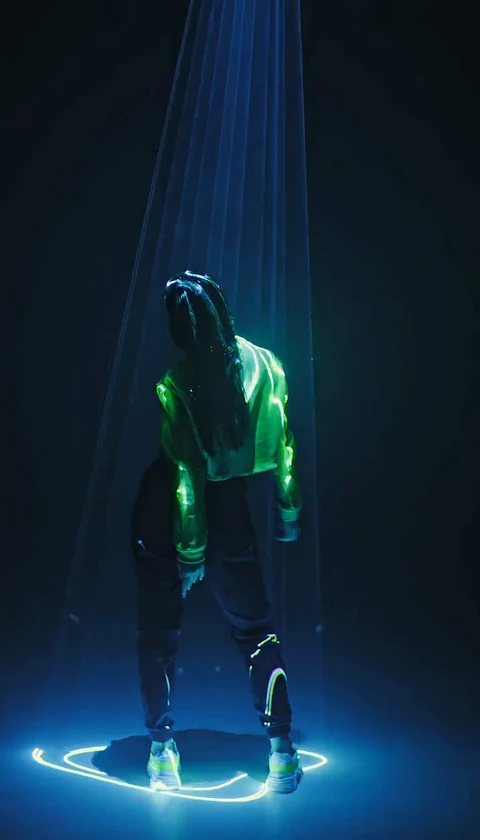
How to Sync an AI Tecktonik Video to the Beat
Learn to sync AI Tecktonik video to the beat: trim the silent ends, place the drop, nudge the audio by frames and cut on the arm sweep without re-timing the dance.
Tecktonik Dance AI editorial team · Updated October 8, 2026
A clip from Tecktonik Dance AI is a fixed piece of footage. It runs 8 or 10 seconds depending on the scene, it has no audio track, and the choreography inside it is baked in. You cannot slow the arms down, you cannot ask the performer to land a move on a particular snare, and you cannot extend the performance to fit a longer track. What you can do is place sound around the footage so that the moments the clip already contains fall where the music wants them to fall.
That is what beat syncing a generated clip actually means. It is an editing exercise, not a generation setting, and the honest version is that a well-placed track makes a good clip look better while a badly placed one makes a decent clip look careless. This guide covers the order of operations, what each technique fixes, and what no amount of editing can rescue.
If you have not added a track to a clip yet, the music guide covers which route to take and what the licences allow. Come back here once you have audio in the timeline.
What the clip gives you to work with
Before touching a timeline, be clear about the raw material:
- A fixed duration. Eight or ten seconds, set by the scene you chose. You saw the length on the scene card before you generated.
- No audio at all. The original-audio slot is empty, so nothing needs muting and nothing bleeds through.
- Continuous arm motion. The dance is arm-driven: waves, wrist rolls, fast sweeps across the body, with a stiff torso underneath. There is no long static opening to hide behind.
- A loop point. The clip starts and ends inside a performance rather than on a clean count, which matters when you cut.
Because the motion is continuous and fast, the clip has no strong internal beat you can read off the visuals alone. That is normal. The rhythm is supplied by your track, and your job is to find the points where the track's accents and the clip's biggest movements can be made to coincide.
Finding the beat before you touch the timeline
Listen to your chosen track three or four times without looking at any editor. The thing you are listening for is the kick pattern — the regular low thump that anchors most electro and dance material. Once you can tap along to it, note where the following events happen:
- The first kick of the main section, after any introduction.
- The drop, meaning the point where the track's full weight arrives.
- Any breakdown or fill in the middle of the section you plan to use.
- The end of the first phrase, usually a natural place to stop.
Write those rough timestamps down in seconds. Most phone editors show a waveform, and those timestamps let you jump to the right place immediately rather than scrubbing blindly.
Sync AI Tecktonik video to the beat: the edit in order
Work through these steps in sequence. Each one assumes the previous one is done, because fixing a timing problem before you have trimmed the clip means fixing it twice.
Trim the silent head and tail
Even a silent clip benefits from trimming. Import the video, put the playhead at the very first frame, and check whether the opening moments look like a settled performance or a wind-up. If the first few frames are the body gathering itself before the arms start, cut them. Trim the tail the same way, and stop on a frame that still looks like dancing rather than a fade-out.
Cutting the ends also changes your working length, which is why it comes first. An 8-second clip trimmed to 7.2 seconds gives you a different set of options for where the drop lands.
Decide whether the clip rises into the drop or starts on it
This single choice changes the character of the post more than any nudge.
Starting on the drop means the clip's first frame sits on the moment the track's weight arrives. The advantage is immediate impact: there is no waiting, and a viewer scrolling past meets the arms already moving at full energy. The cost is that the clip has nowhere to build, so it plays as one continuous burst.
Rising into the drop means you start the video slightly before the drop, during a buildup or a sparse section, and let the arms carry the viewer into it. This suits clips whose first second is a wind-up rather than a full sweep. It gives the post a shape: anticipation, then release. The risk is that a viewer who is not already interested leaves during the quieter opening.
With a clip of 8 to 10 seconds, you have room for a short rise and a decent release. If you are unsure, start on the drop — a short clip punishes a slow opening more than it rewards a build.
Nudge the audio a few frames earlier or later
After the rough placement, the difference between "nearly right" and "right" is usually a handful of frames. Most phone editors let you drag the audio track in tiny increments or set an offset numerically. Move the audio slightly later so the visible sweep arrives just after the hit, or slightly earlier so the hit lands as the arm crosses the body.
Work in small steps and watch the same two seconds repeatedly. If you find yourself nudging back and forth past the right point, your brain is chasing a frame that does not exist: the fastest arm sweeps in a generated clip can smear, so the exact instant of an accent is genuinely fuzzy. Settle on the version that feels closest and move on.
Cut on the arm sweep
If you use more than one clip, the join point matters as much as the timing. Put the cut on a large arm movement — a wide sweep across the body, or a roll that crosses the centre line — and the eye reads the transition as part of the dance rather than as an edit.
There is a practical reason too. Generated clips start and end inside a performance, so the first and last frames of two different clips will not line up. A cut hidden inside fast movement disguises the mismatch, and it also hides the fact that both clips effectively loop the same choreography. Cutting on a quiet moment, by contrast, exposes the jump immediately.
Fill a longer track with a second clip
If your chosen sound has a section longer than your footage, generate a second clip of the same photo and scene and place them end to end, with the join on a sweep. Two runs of the same scene cut together read as one longer performance as long as the transition is hidden and both clips use the same photo.
Keep the credits in mind: each clip is a separate generation at 30 credits per standard video. That is fine when you want a longer piece, but it is an odd way to chase a track that only needed eight seconds of footage in the first place.
Use speed ramps carefully
A gentle speed change across a join — a brief acceleration into a cut — can smooth a transition and give the edit a sense of push. Applied lightly it works with the arm vocabulary, because the arms are already the fastest thing in frame.
Pushed harder, it fights the clip. Tecktonik already reads as fast and slightly unnatural; slowing the footage down draws attention to the places where hands blend and small details drift, and speeding it up past about a modest amount makes the whole performance look like a glitch rather than a choice. Use ramps as transitions, not as an effect.
What each technique fixes, and what it costs
| Edit technique | What it fixes | What it risks |
|---|---|---|
| Trimming head and tail | A hesitant or fading opening, a dead final second | Cutting into motion, so the clip opens mid-sweep with no context |
| Starting on the drop | A weak first second in a very short clip | No buildup, and no room to make the drop feel like an event |
| Rising into the drop | A clip that feels flat from the first frame | Losing viewers during the quieter opening |
| Frame-level audio nudge | A hit that arrives noticeably late or early | Chasing an exact frame that the smeared motion does not really have |
| Cutting on an arm sweep | A visible join between two clips or a replayed loop | A cut that lands on a messy frame and looks worse than the jump would |
| Second clip for a longer track | A track section longer than your footage | Extra credit spend and a visible mismatch if the join is exposed |
| Moderate speed ramp | A hard join that needs smoothing | Drawing attention to hand artefacts or producing a glitchy look |
What beat sync cannot fix
Editing is powerful and limited. It cannot repair any of the following, and trying is the fastest route to wasted effort:
- A weak source photo. Blur, a face turned away from the camera, hard shadows or a very low-resolution image produce a weak result regardless of the soundtrack. Start over with a better photo rather than editing harder.
- Garbled hands or blended arms. This is the known weak spot of the whole technique, because Tecktonik is arm-driven and the fastest sweeps are where any model struggles. Choosing different moments of the clip to use is legitimate; expecting a nudge to make smeared hands clean is not.
- A scene whose rhythm does not match your track. If the source scene moves at a calm pace and your chosen sound is a slow ballad, the pairing will read as mismatched no matter where you place the audio. Change one of them.
- Wrong length. A 10-second clip cannot fill a 30-second track without a second generation or an edit that leaves static frames on screen.
- Reframing problems. Crop and ratio issues belong to the platform editor; see the TikTok guide for how that interacts with sound.
Set the bar in the right place: the goal is a clip where the sound and movement agree, not a clip where every single accent lands perfectly.
Frequently asked questions
Can I change the speed of the dance itself?
No. The choreography is part of the generated footage. You can trim which part of it you use, and you can apply a speed effect across a section in an editor, but you cannot re-time individual moves.
My clip is 10 seconds and my favourite part of the track is at 40 seconds. What now?
Choose a different section of the same track, or pick a different track whose strong moment arrives earlier. Filling the gap with a second generation is possible but expensive for a short post.
Should the video start on the first beat of the song?
Not necessarily. The first beat is rarely the most interesting moment. Starting on the drop is usually stronger for a short clip; starting a second or two earlier suits a clip with a clear wind-up.
How precise does the sync need to be?
Close enough that the audio does not feel detached from the movement. A few frames either way is normal and often invisible, especially during the fastest sweeps.
Can I use two different tracks on one clip?
You can, but the video is short and a track change inside eight seconds rarely reads well. Two clips cut together, each with its own section of the same track, works better.
Does beat syncing affect the file I downloaded?
No. The download is untouched. All of this happens in the platform editor or your own editing app, on a copy of the file.
Where to go next
If the clip still has no sound, start with the music guide and pick your track before you open a timeline. If the timing is settled and you are ready to publish, the TikTok guide and the Reels guide cover framing and captions. And if you are still deciding what to make, the ideas guide has formats that suit a very short silent clip, most of which are easier to sync than a long one.
New clips start on the create page, and credits for them are explained on the pricing page.