How to Make an AI Tecktonik Video From One Photo
How to make an AI Tecktonik video from one photo: pick a scene, upload a clear adult photo, choose the appearance mode and create a silent 8–10 second clip.
Tecktonik Dance AI editorial team · Updated October 8, 2026
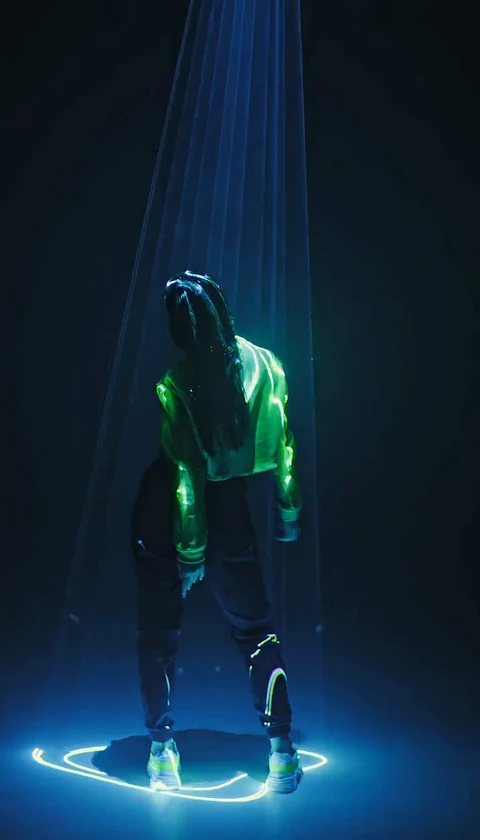
Tecktonik Dance AI turns a single portrait photo into a short video of that person performing the 2000s French electro dance: sharp arm waves, rolling wrists, a stiff upper body and a neon club-stage mood. The clip you get is short by design — 8 to 10 seconds, silent, and built to be posted, not to be a film. This guide walks through the whole workflow in the order the studio asks for it, explains what each choice actually changes, and is honest about the parts AI still gets wrong.
If you want the background first, read what Tecktonik dance actually is. If you only have a few minutes, the short version is this: one photo in, one silent vertical clip out, 30 credits per video.
The workflow, step by step
The studio is deliberately linear. You always make the same six decisions, and the order matters because the scene you pick decides how many photos you need and how long the clip will be.
1. Choose the scene before you choose a photo
Every video starts from a prepared source scene. These are ready-made performances with their own camera movement, lighting and length; the tool replaces the performer, it does not invent a dance from nothing. The scene list tells you three things that should drive your choice:
- How many performers. Solo scenes take one photo. Duet scenes take two photos, one adult per photo, because the model needs a separate face for each role.
- How long the clip runs. Scenes in the catalogue are 8 or 10 seconds long.
- The aspect ratio. Most scenes are portrait, either 4:7 or 24:43. A few two-person trend scenes are landscape at 131:90.
Press the preview on any scene card and you will see the original footage, not a generated result. That is important: the preview shows you the setting and motion you are buying into, while the result will look like the person in your photo standing in that scene.
2. Add one adult photo per performer
Upload a JPG, PNG or WebP up to 10 MB with one clearly visible adult face. For a duet you upload two separate files — do not send a group photo and expect the tool to slice it in half. If you are unsure about your shot, the photo guide covers framing, light and what to crop, and the solo video guide covers the single-performer path in more detail.
3. Choose what should change: face and hair, or the whole appearance
This is the choice people skip past, and it is the one that changes the result the most.
| Appearance mode | What it takes from your photo | What it leaves alone | When to pick it |
|---|---|---|---|
| Face & hair | Your face and your hairstyle | The original outfit of the character in the scene | You want the club-scene styling and only your likeness |
| Whole appearance | Your face, your hair and your outfit | Nothing about your clothing — the scene keeps your look | You want to recognise your own clothes in the clip |
If you pick the whole appearance, the photo needs to show your outfit clearly, not just your head. If your clothes are cut off by the frame, the model has to invent whatever it cannot see. The face versus whole-person comparison goes deeper into both modes with side-by-side trade-offs.
4. Add an optional direction line
In the extra direction field you can name one small constraint, for example "keep my glasses and curly hair", which helps when a detail matters to you and is easy to lose. Keep it to one or two concrete things. A long paragraph of conflicting instructions does not help the model; a single clear constraint does.
5. Confirm consent and spend your credits
You must tick the box confirming you have permission to use the photos and that everyone shown is an adult. Only then does the Create button submit the job. A standard video costs 30 credits, and the balance and the exact charge are printed beside the button before anything is spent.
Credits arrive in packs sold on the pricing page, and the bigger the pack, the lower the price of each clip — the cost breakdown works through that arithmetic. If a generation fails, its credits are returned to your balance automatically.
6. Watch the status, then preview and download
While the job runs you will see a short sequence of states — checking your photos, preparing the scene, starting generation, creating your video, checking the result, and finally a ready preview. You can leave the page and come back to your videos; the job keeps running.
When the preview is ready you can watch it in the browser. Downloading the original MP4 is a separate step that unlocks with a completed purchase, and the studio shows the current state of each result on the video card. Download the file while you are thinking about it rather than weeks later.
What the result can and cannot do
AI video of this kind is convincing at a glance and imperfect up close. Set expectations early:
- Hands and fast arm movement are the weakest area. Tecktonik is arm-driven, so this is the hardest possible dance for any model. Expect some smearing or blending at the fastest sweeps.
- The face is a likeness, not a scan. Small details can drift between frames.
- The motion comes from the source scene, so your clip has the choreography that scene contains, not a dance you described in a comment box.
- The clip has no sound at all. You add music yourself; the music guide explains how to do that legally on each platform.
Preview everything before you post. If a frame bothers you, generating again with a different scene or a sharper photo is usually faster than trying to fix the video afterwards.
Plan for the aspect ratio, not just the length
Nothing in this workflow outputs a standard 9:16 phone video automatically. Portrait scenes come out at 4:7 or 24:43, which are narrower than TikTok and Reels expect, and the two-person trend scenes come out landscape at 131:90. Two things follow from that:
- If you post a 4:7 clip to a 9:16 canvas, you will get bars or a blurred background unless you crop carefully.
- If you post a 131:90 clip to a vertical feed, most of the frame will be cut off.
Decide where you are posting before you pick the scene, then crop in the platform editor. The platform guides deal with that side of the work: publishing to TikTok and publishing to Instagram Reels.
Frequently asked questions
Can I upload a video instead of a photo?
No. The upload accepts still images only: JPG, PNG or WebP, up to 10 MB.
Do I need two photos for every video?
Only for duet scenes. Solo scenes take exactly one photo of one adult. The duet guide explains how the two roles are assigned.
Is music included?
No. Every template and every download is silent. You add the track in the app where you publish, using that platform's own sound library.
What happens if my generation fails?
The credits for that job return to your balance automatically. Photos are not charged, and failed jobs do not consume a download.
How long does a video take to generate?
It depends on the scene and on how busy the service is, so the studio reports status rather than promising a fixed time. You can close the tab and check your videos later.
Can I use it with a photo of someone else?
Only with that person's permission, and only if they are an adult. If you would not be comfortable showing them the result, do not generate it. The privacy and consent guide covers this properly.
Where to go next
Start on the create page and preview two or three scenes before uploading anything — knowing which clip length and ratio you want makes the rest of the workflow quick. When a result is wrong rather than merely imperfect, the troubleshooting guide works through the likely causes one at a time. And if you have not settled on a concept yet, the ideas guide collects formats built for a ten-second silent clip.
Tecktonik Dance AI is an independent tool. It has no affiliation with any artist, label or social platform, and it neither supplies nor licenses music.